
Adding Furigana to Your Microsoft Word Document
Most people have no trouble getting their computer to type Japanese (if you need help with setting up the IME, see our Wagawiki here), but adding furigana (small hiragana over kanji) for documents and PDFs can be a little harder.
This page will discuss how to add furigana in Microsoft Word 2007. Earlier versions of Word also have this feature and the setup may be similar as below. For those without Word, I believe Open Office either has this feature out of the box or as a plugin.
Basically in Word, highlight any Japanese (usually kanji) and click on the Phonetic Guide button:
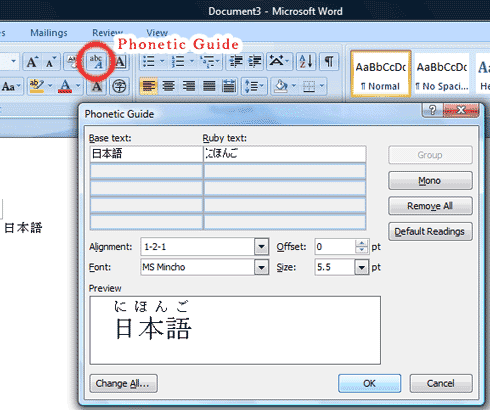
The computer guesses the Ruby text and is usually correct, but you can change it here.
I don’t believe the Phonetic Guide is displayed in the quick launch icon section by default.
Here is how to add the Phonetic Guide to the quick launch section:
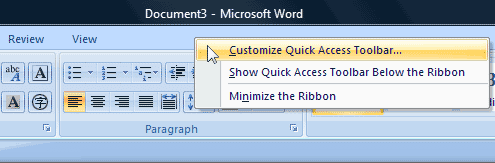
1) Right click on the top bar section and choose ‘Customize Quick Access Toolbar’

2) Under ‘Choose Comands From’ sellect ‘All Commands’
3) Find the ‘Phonetic Guide and click on ‘Add’
Now you should see the Phonetic Guide icon at the top for easy access.
You do have to go word by word to make sure the furigana is correct, it is pretty fast and easy.
Note: To make the furigana under the kanji, see this forum thread